 Kitebill
Kitebill guide
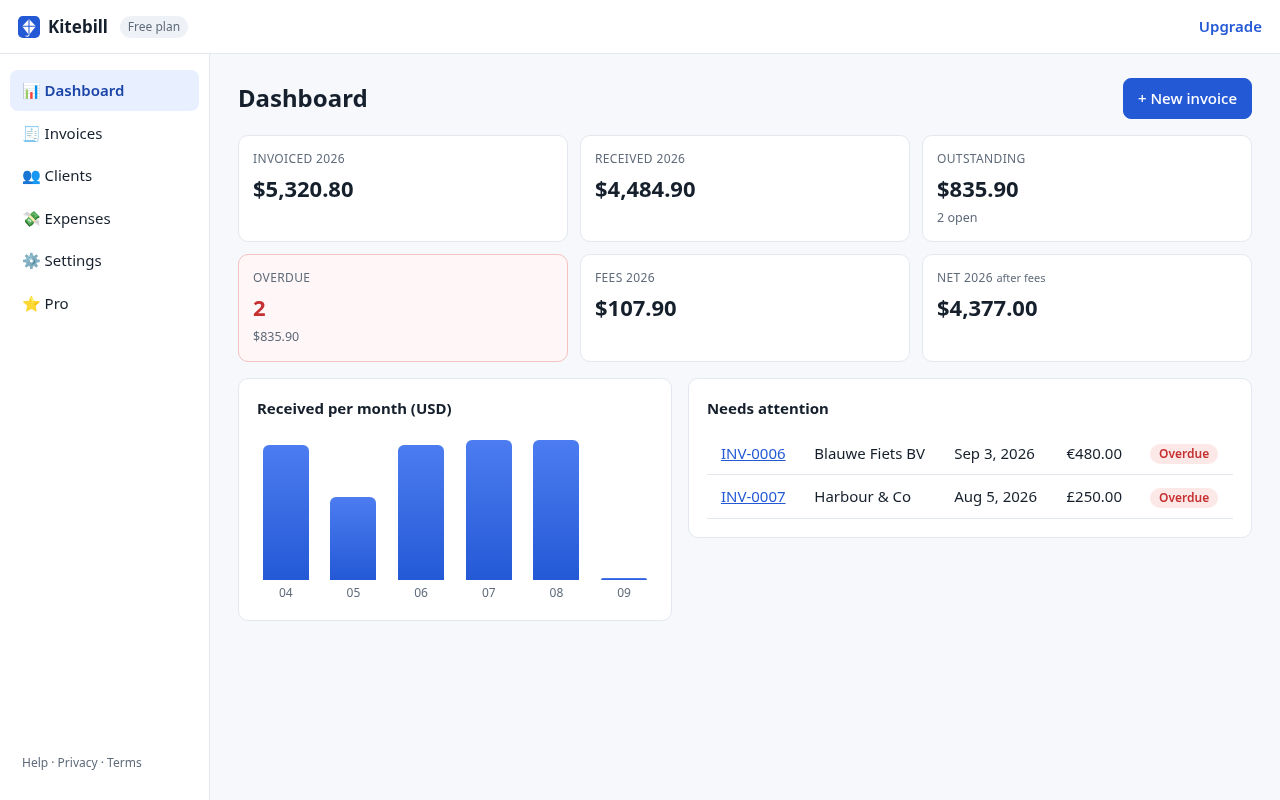
Getting started
- Open the app. There's no signup. To look around first, click Load sample data (you can erase it later in Settings).
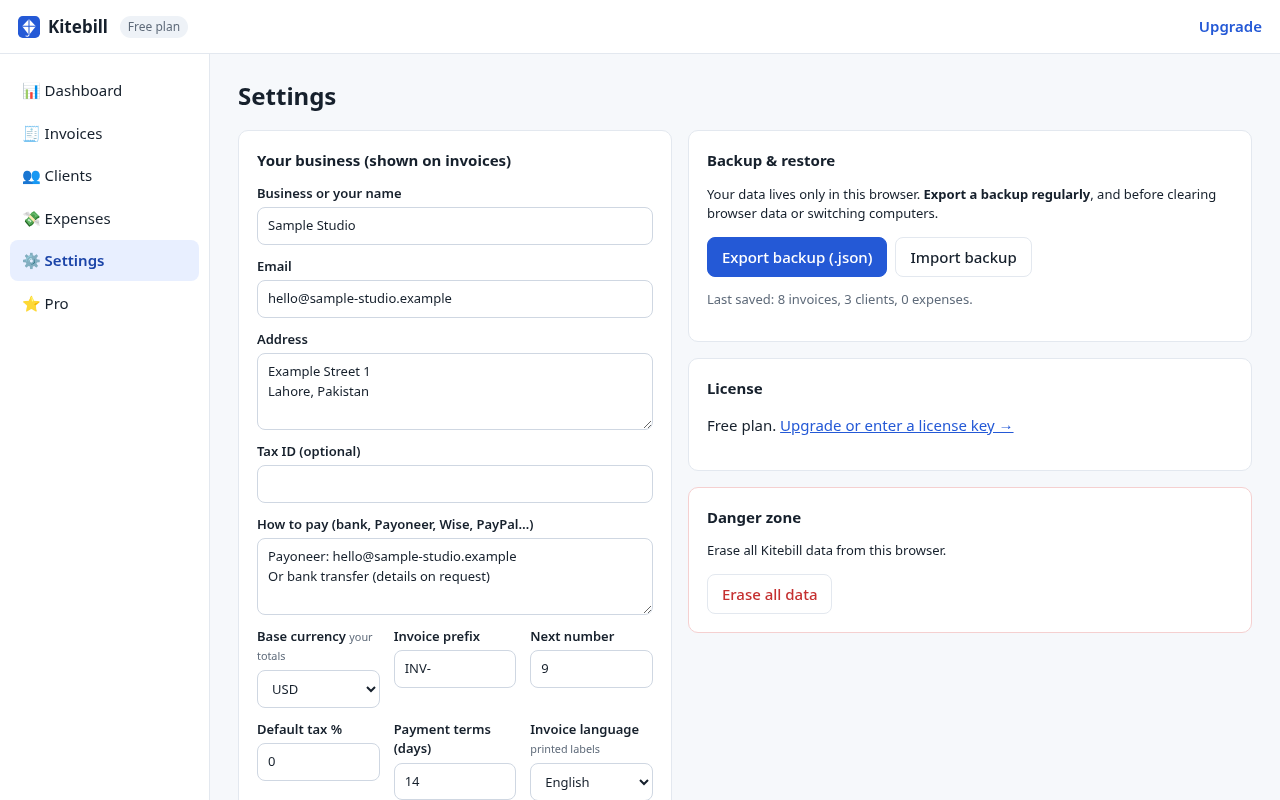
- Settings: enter your business name, address, email, payment instructions and your base currency (the currency you think in, e.g. USD or PKR).
- Clients: add a client and their default currency, or import a CSV.
- Invoices → New invoice: add line items, then Save. Press n anywhere in the app to jump there.
Sending and tracking invoices
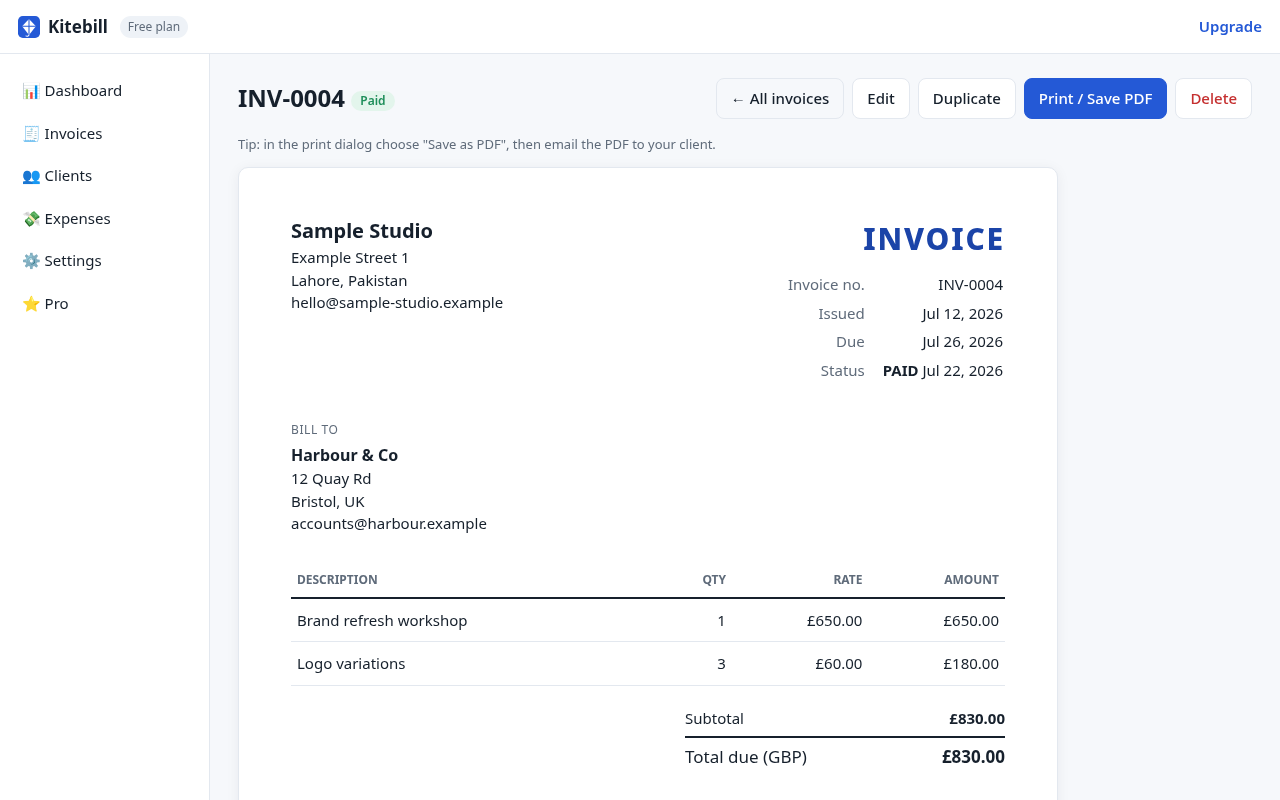
- Open an invoice and click Print / Save PDF. In the print dialog choose Save as PDF, then email the PDF to your client.
- Click Mark as sent. Once the due date passes it shows as overdue on the dashboard.
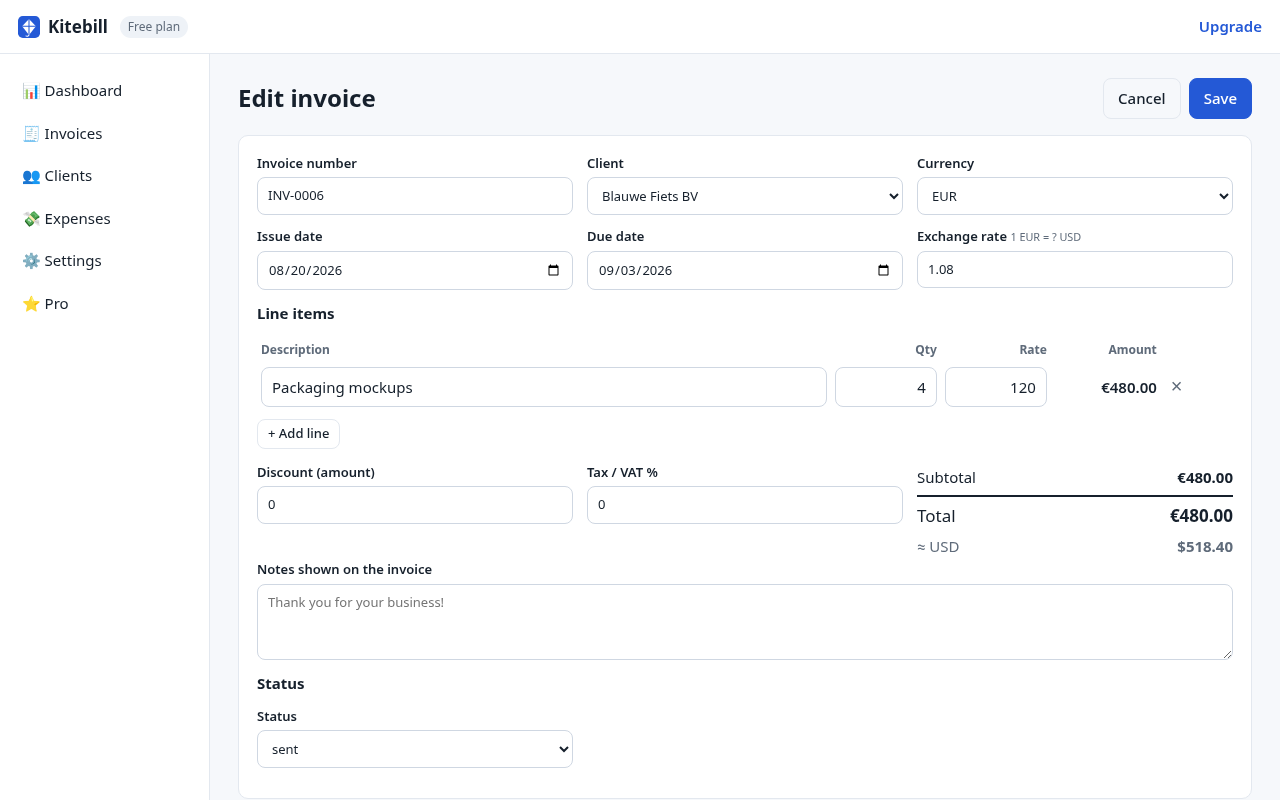
- When the money arrives click Mark as paid, then Edit to record the exact amount received and any fees.
- Duplicate copies an invoice with a new number and today's date, which is handy for monthly retainers.
Clients and CSV import
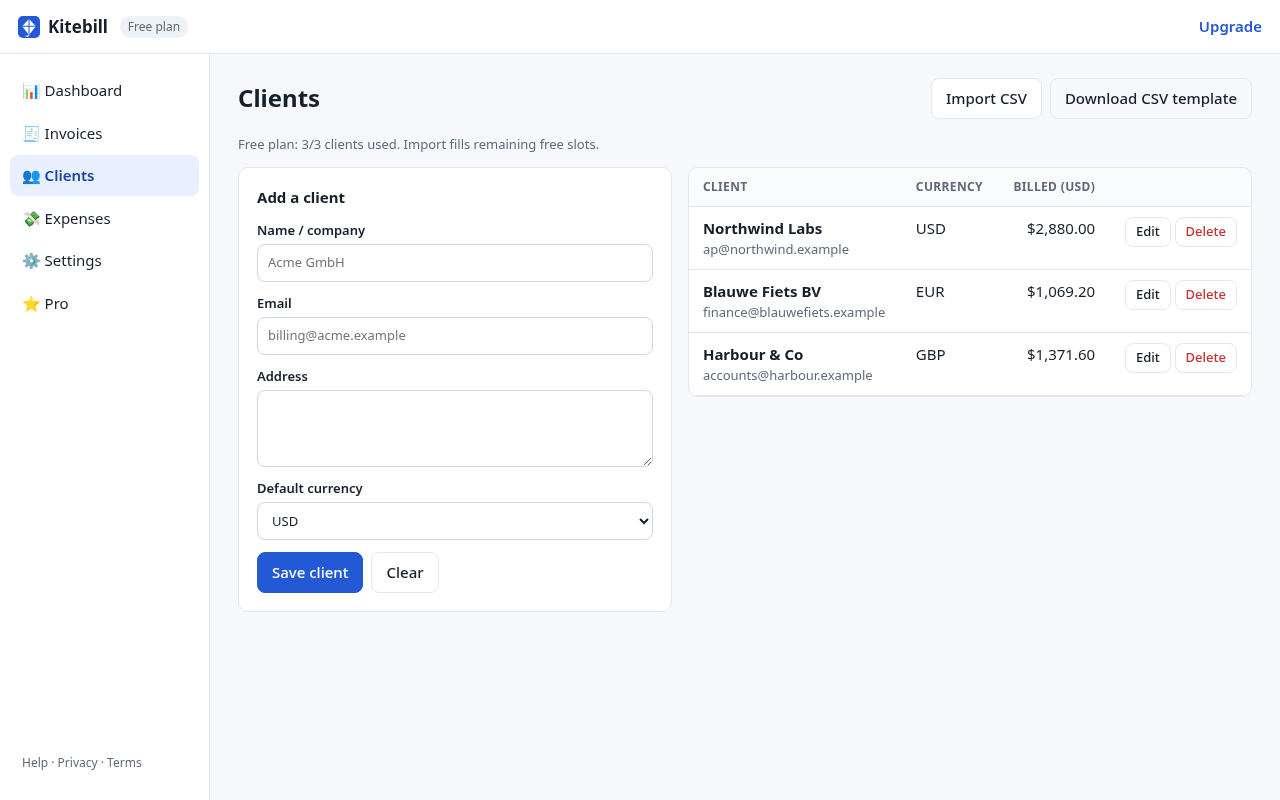
- Click Download CSV template for the expected columns, fill it in any spreadsheet, then Import CSV.
- Rows with a matching email update that client; new emails are added. On the free plan, import stops when you hit the 3-client limit.
- Header names are flexible (
Name/Client/Company,Email,Address,Currency).
Currencies, exchange rates and fees
Each invoice has its own currency. If it differs from your base currency, fill Exchange rate (1 unit of invoice currency = ? base currency). Dashboard totals use that rate. In "Amount received" you can record exactly what landed in your account, and in "Fees" what the platform, PayPal or bank took. Net income = received − fees (− expenses with Pro).
Invoice language (printed labels)
In Settings → Invoice language you can keep English, or switch to English + Arabic or English + Urdu bilingual labels on the printed invoice (e.g. "Invoice no. / رقم الفاتورة"). Useful when billing clients in the Middle East or South Asia. Your line-item descriptions stay as you typed them.
Keyboard shortcuts
- ? — show / hide the shortcuts help
- n — new invoice
- g then d / i / c / e / s — go to Dashboard / Invoices / Clients / Expenses / Settings
- Ctrl/⌘ + S — save the form you are editing
- Esc — close help, or leave an invoice edit
Shortcuts are ignored while you are typing in a field.
Your data and backups
Everything is saved automatically in this browser on this device (local storage). We never receive it, which also means we can't restore it for you. Use Settings → Export backup regularly, and always before clearing browsing data, using a different browser or changing computers. To move, click Import backup on the new device. Private/incognito windows delete data when closed, so don't use them for real work.
Pro license
- Buy Pro on the pricing page (checkout by Paddle).
- The thank-you page shows your key (starts with
KB1.) with an Activate in this browser button. Keep a copy of the key. - In another browser: open the app → Pro → paste the key → Activate.
- Lost the key? Recover it with your email + the invoice number on your Paddle receipt.
Troubleshooting
- My data disappeared: you may be in a different browser, profile or a private window, or browsing data was cleared. Import your latest backup.
- PDF has headers/URLs: in the print dialog, turn off "Headers and footers".
- Key rejected: copy the whole key, from
KB1.to the end. Still stuck? Write to mtabarca24@gmail.com.